On this page
In short
GeForce NOW runs on both the Steam Deck LCD and the OLED, through an official SteamOS app. You download GeForceNOWSetup.bin from gfn.link/download in Desktop Mode, run it, and it adds itself to your library under Non-Steam games. You no longer need the Chrome workaround. Every plan works, but they do not give the same thing on each model: NVIDIA requires an Ultimate membership for the OLED’s 90 fps and for 4K when the Deck is docked.
NVIDIA published the SteamOS app on May 29, 2025. Instructions that tell you to install Google Chrome, add a launch option and force a user agent are from before the app. Skip them. The steps below are NVIDIA’s own.
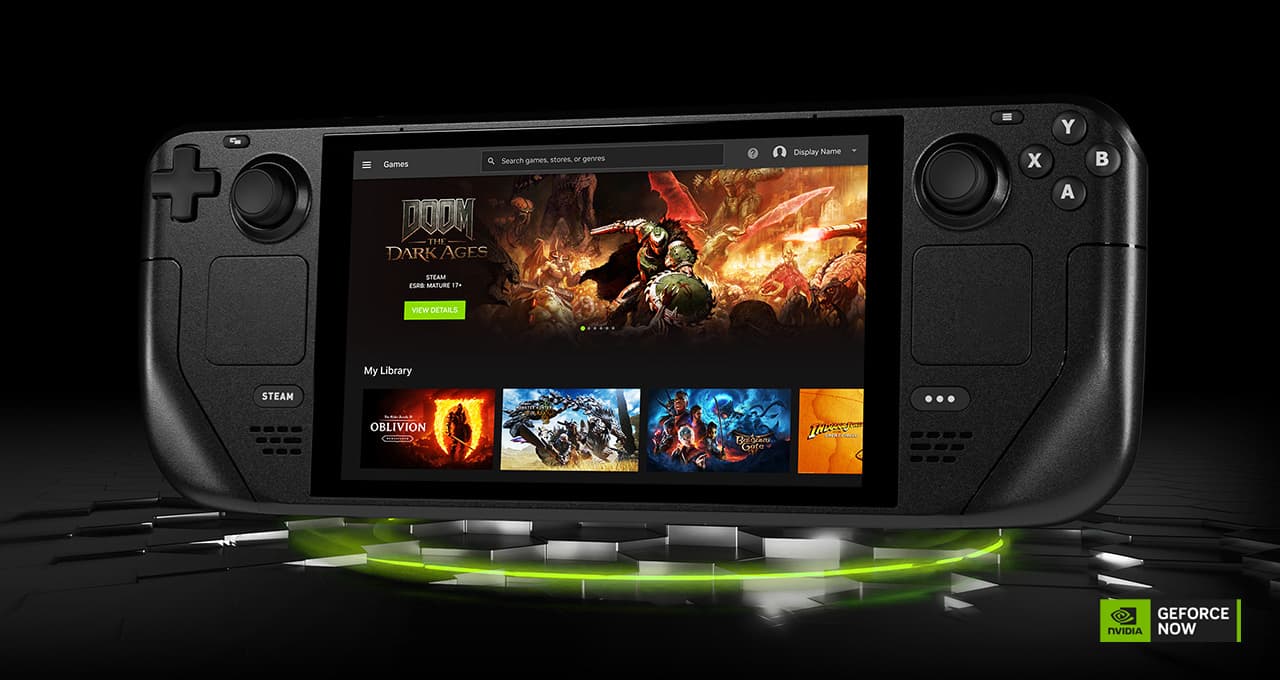
What you need
- A Steam Deck, LCD or OLED, on a current SteamOS build. Both models are supported.
- A free NVIDIA account. You sign in from inside the app, not before.
- A browser, once, in Desktop Mode, to download the installer. You never stream from it.
- The accounts of the stores your games live on: Steam, Epic Games Store, Ubisoft Connect, GOG, EA app, Battle.net or Xbox PC Game Pass.
- A 5 GHz Wi-Fi network for handheld play, or an ethernet connection through the dock when you play on a TV.
No physical keyboard is needed. A phone helps: the NVIDIA sign-in offers a QR code, so you do not type a password on the on-screen keyboard.
Install the official GeForce NOW app
The app has to be downloaded on the Deck itself, in Desktop Mode. It cannot be installed from a web browser on another machine.
- Press the Steam button, then Power → Switch to Desktop.
- Open a browser and go to gfn.link/download. The page detects SteamOS and hands you the right installer.
- Download
GeForceNOWSetup.bin. - Open the file explorer (Dolphin) and find the file, normally in Downloads.
- Double-click it and choose Execute.
- Follow the installer to the end.
- Click Return to Gaming Mode from the desktop.
- Open Library → Non-Steam and launch GeForce NOW.
- Sign in to your NVIDIA account with the QR code or the displayed code.

If the file will not run
SteamOS sometimes asks you to choose an application to open the .bin instead of running it. NVIDIA documents the fix: exit that window, right-click GeForceNOWSetup.bin, open Properties → Permissions, tick Is executable (it is called Allow executing file as a program on some builds), click OK, and double-click the file again.
If it still refuses, NVIDIA’s fallback is the terminal. Open the Terminal app and run cd ~/Downloads, then chmod +x GeForceNOWSetup.bin, then ./GeForceNOWSetup.bin. If the installer fails partway, restart the Deck and run it again.
Set up the trackpad and controls
Out of the box the Deck gives GeForce NOW a gamepad, and a gamepad cannot click a launcher’s login box. NVIDIA publishes a layout that fixes it. Set it up before your first session.
- Launch GeForce NOW, then press Steam → NVIDIA GeForce NOW → Controller settings.
- Once past the tutorial, set Current Button Layout to Gamepad with Mouse Trackpad.
- Then Edit Layout → Trackpads, and set the right trackpad’s Click to Mouse → Left Mouse Click.
- Overlay
- Long-press the Start button (the ☰ menu button) while streaming to open the GeForce NOW streaming overlay.
- Escape
- Steam button + left D-pad sends an Esc keypress into the stream, which is how you leave a game’s menu that has no gamepad binding.
- Touch
- Touching the screen acts as a mouse click, so a launcher can be dismissed without any of this configured.
- Gamepads
- Some games accept only one gamepad. If an external pad does nothing, open Controller settings → Reorder Controllers and move the built-in controller down.
The right settings for LCD, OLED and docked
NVIDIA publishes a recommended streaming target for each SteamOS handheld it has tested. This is the one place where the two Deck models differ.
| Device | Handheld | Docked |
|---|---|---|
| Steam Deck (LCD) | 1280 × 800 at 60 fps | 3840 × 2160 at 60 fps |
| Steam Deck OLED | 1280 × 800 at 90 fps | 3840 × 2160 at 90 fps |
The resolution is the same on both models and the frame rate is not. The LCD panel stops at 60 Hz. The OLED goes to 90, and GeForce NOW sends it 90 fps at the panel’s native resolution, on Ultimate only. The plan you pick depends on which model you own.
HDR on the Steam Deck OLED
NVIDIA’s launch post for the Steam Deck app promises HDR10 with the Deck connected to a TV, at up to 4K and 60 fps, on Ultimate. It says nothing about the OLED’s own screen, and its HDR10 support table does not list SteamOS. Players report both: HDR on the handheld screen on some sessions, SDR through the dock on others. Do not buy Ultimate for HDR on the Deck.
Switching between handheld and docked
NVIDIA recommends restarting the GeForce NOW app whenever you move between handheld and docked, so it picks up the right resolution. The app reads the display when it starts, so without a restart a session begun handheld can keep sending 1280 × 800 to a 4K screen. Use the dock’s ethernet port when docked.
Which plan makes sense on a Steam Deck
Start with the catalogue, because the three plans do not open the same one. Of the 6,068 games we list on GeForce NOW today, the free plan can start 2,058. The rest need a paid membership, most of them because they are Install-to-Play. After that, what changes is the machine, how long you wait for it, how long you keep it, and the frame rate it can send you.
| Plan | On a Steam Deck | What it does not give you |
|---|---|---|
| Free | Enough to find out whether your network is good enough, and which of your games are on the service. Basic rigs, ads before a session, a queue at busy hours. | Most of the catalogue: it opens 2,058 of the 6,068 games we list. Also the OLED’s 90 fps, 4K docked, and every premium feature. |
| Performance | RTX rigs, priority in the queue, longer sessions, HDR10 and 10-bit where the platform supports them. On the LCD this is the plan to take. | 90 fps on the OLED and 3840 × 2160 docked, both of which NVIDIA reserves for Ultimate. |
| Ultimate | RTX 5080 rigs, the shortest waits, the longest sessions, and the only plan that unlocks 90 fps on the OLED panel and 4K on a docked TV. | Nothing. But the LCD panel stays at 60 Hz, so the display gains only show on the OLED and on a docked TV. |
On an LCD Deck, Performance is the better value for most players. The extra frame rate Ultimate unlocks is one the 60 Hz panel cannot show. Ultimate still buys a stronger rig, a shorter queue and a longer session, which matters if you play demanding games or at busy hours. On an OLED, or docked to a TV, it also buys a frame rate the screen can display.
The 100-hour cap
Performance and Ultimate both include 100 hours of playtime a month. Up to 15 unused hours roll over into the next month. If you run out you can buy more hours, or keep playing on basic rigs without the premium benefits until the month resets. Founders memberships are exempt and keep unlimited playtime for as long as the membership does not lapse.
Why use GeForce NOW on Steam Deck?
- AAA games the Deck cannot hold a frame rate on locally, running on a remote RTX rig.
- Games and storefronts that are awkward or impossible to run under SteamOS directly.
- No 100 GB download, and no shuffling of the SSD to make room for one.
- A cooler, quieter machine, because it is decoding video rather than rendering a game.
- Longer battery life for the same reason. NVIDIA claims up to 50% more than running the game natively.
The limitations to know about
- Nothing works offline. A weak or busy network shows up as a soft picture and input lag, and no setting fixes that.
- Free sessions end after an hour, and you queue for a machine at busy times.
- You need the game on a supported store. Ready-to-Play titles start instantly. Install-to-Play lets paid members install thousands more Steam games into cloud storage, with an install at the start of each session.
- Which games are available depends on publisher agreements and on your region.
- Sleeping the Deck mid-stream is not documented by NVIDIA, and players report losing the session. Save in-game and close the stream before you suspend.
Troubleshooting common problems
GeForceNOWSetup.bin will not open, or SteamOS asks me to choose an application
Right-click the file, Properties → Permissions, tick “Is executable” or “Allow executing file as a program”, then double-click again. If SteamOS still asks, run it from the Terminal: cd ~/Downloads, chmod +x GeForceNOWSetup.bin, ./GeForceNOWSetup.bin.
The installer runs but fails partway
Restart the Steam Deck and run it again. This is NVIDIA’s advice for a failed install.
GeForce NOW is not in my library
It installs as a non-Steam game, so it is under Library → Non-Steam rather than with your Steam titles. If it is not there either, the installer did not finish: go back to Desktop Mode and run it again.
I cannot click anything in a launcher or a login box
The controller is still on the plain gamepad layout. Set Current Button Layout to “Gamepad with Mouse Trackpad” and bind the right trackpad’s click to a left mouse click. Touching the screen also works as a click in the meantime.
A game needs a keyboard
The Steam on-screen keyboard opens over the stream with Steam + X. For a menu that only closes with Esc, use Steam + left D-pad.
My external controller does nothing
Some games accept a single gamepad and the Deck’s built-in controller is taking the slot. In Controller settings, choose Reorder Controllers, select the first controller and move it down.
The picture is soft, or the resolution is wrong after docking
Restart the GeForce NOW app. It reads the display when it starts, so a session that began handheld can keep sending 1280 × 800 to your TV until you relaunch it. NVIDIA recommends the restart on every switch between handheld and docked.
Stutter, or latency that ruins a game
Get on the 5 GHz band, or the dock’s ethernet port. NVIDIA asks for latency under 80 ms to its data centers and 25 Mbps for 1080p at 60 fps. If the region itself is saturated, our Servers page shows the live queue and status of each one.
Install the app, fix the trackpad binding, and run the free plan for a week to learn which of your games are on the service and whether your network holds. Then decide between Performance and Ultimate based on the model you own.
Questions
Is GeForce NOW free on Steam Deck?
Yes. The free plan works on the Deck as on any device: basic rigs, ads before a session, a queue at busy hours and sessions that end after an hour. The app itself costs nothing on any plan.
Is there an official GeForce NOW app for Steam Deck?
Yes, since May 29, 2025. NVIDIA publishes a SteamOS installer, GeForceNOWSetup.bin, from gfn.link/download. It adds GeForce NOW to your Steam library as a non-Steam game.
Do I still need Chrome?
No. The browser workaround with a forced user agent was the only route before the app existed. You only open a browser once now, to download the installer.
Does it work on the Steam Deck OLED?
Yes, and better than on the LCD. NVIDIA lists the OLED at 1280 × 800 and 90 fps handheld, against 60 fps for the LCD at the same resolution.
Can the Steam Deck OLED really stream at 90 fps?
Yes, on an Ultimate membership. NVIDIA requires Ultimate for the 90 fps figures. On Free or Performance the OLED streams at 60.
Does GeForce NOW support HDR on the Steam Deck OLED?
Officially, through the dock on an HDR TV, on Ultimate. NVIDIA’s HDR10 support table does not list SteamOS, and players report mixed results on the OLED screen itself. Do not buy Ultimate for HDR on the Deck.
Can I launch it from Gaming Mode?
Yes. The installer puts it in Library → Non-Steam, so it starts like any other game. Desktop Mode is needed once, for the install.
Do I have to buy my games again?
No. GeForce NOW streams games you already own on Steam, Epic, GOG, Ubisoft Connect, the EA app, Battle.net or Xbox PC Game Pass. The subscription pays for the stream. A game you own still has to be on the service.
Does GeForce NOW save battery on the Steam Deck?
NVIDIA claims up to 50% more than running the same game natively. The Deck decodes a video stream instead of rendering frames, so the gain is largest on the games that drain the battery fastest locally.
Can I use GeForce NOW offline?
No. The game runs in an NVIDIA data center, so you need a working connection.
Does suspending the Deck work during a stream?
NVIDIA does not document it, and players report losing the session when the Deck sleeps mid-stream. Save inside the game and close the stream before you suspend.
Can I play on a TV through the dock?
Yes. NVIDIA lists 3840 × 2160 docked for both Deck models, at 60 fps on the LCD and 90 on the OLED, with an Ultimate membership required for those figures. Restart the app after docking so it picks the right resolution, and use the dock’s ethernet port.
Every service, side by side, with live status and the plans as they stand today: compare the services.